FX Outliner
FX Outliner is an enhanced version of the standard Maya Outliner, designed to provide a more flexible and efficient scene management workflow. Technically, it embeds the native Outliner panel into a custom UI wrapper, extending its functionality with powerful integrated search tools, advanced filtering, customizable selection behaviors, and the ability to be extended with custom views.
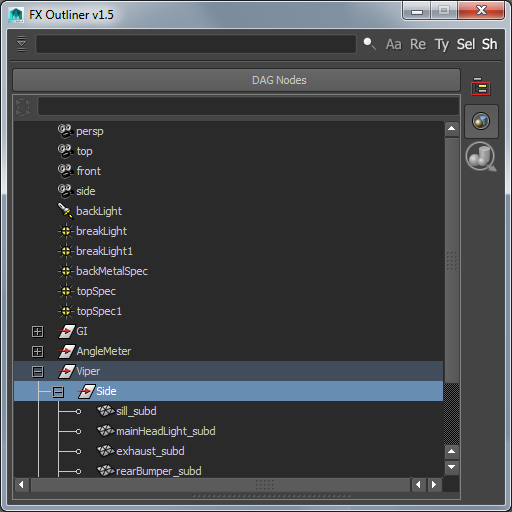
Features
Native Integration
Embeds the standard Maya Outliner, maintaining all default functionality while adding an enhanced interface.
Powerful Search
A dedicated search that supports wildcards, RegEx, searching by node type, case sensitivity, etc.
Custom Views
User-extendable views with customizable selection behaviors.
Extendable UI
Ability to add custom action buttons and extend menus with user-defined commands.
Custom Views
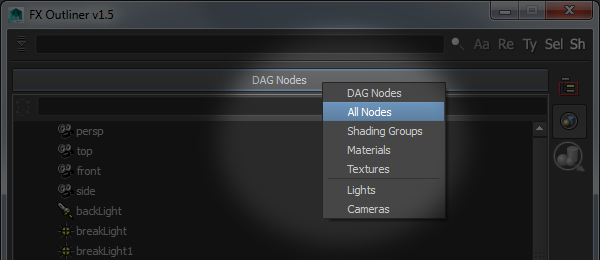
Use this button to switch between FX Outliner Views. A View is a set of properties defining how scene content is displayed and how the tool reacts to node selection. There are two types of views: Simple and Advanced.
Simple View
If you just want to filter by type: add a custom view to...\fxpt\fx_outliner\fx_outliner.xml
and it will appear in the available views list. As an example, I have included two views – Lights and Cameras – to demonstrate how it works.
Advanced View
Advanced views allow for custom logic when selecting nodes in FX Outliner. For example – in the Shading Groups, Materials, and Textures views – the tool monitors the state of the “Select Set Members / Assigned Objects” button. If the button is off, the tool performs a standard node selection; if it is on, it selects the specific objects or components assigned to those shading nodes.
To implement a custom advanced view, you will need to add another OutlinerView instance within the FXOutlinerUI.generateOutlinerViews() method. You can then assign a custom callback to the OutlinerView.selectCommand to handle specific selection logic. Inspect the source code for further implementation details.
FX Outliner Search
Efficient scene searching is essential for a productive workflow, particularly for Technical Artists. The standard Maya search is case-sensitive and limited to wildcards – which is often insufficient for complex production scenes.
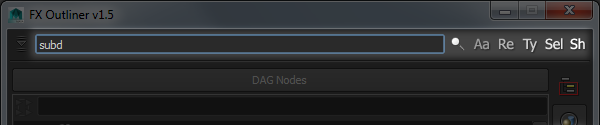
Just type a search string in the search field and hit Enter to display the results in the table below.
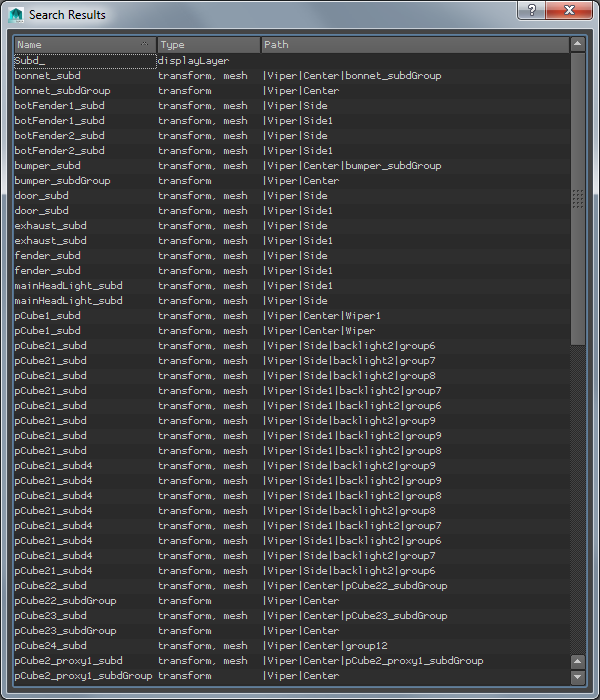
FX Outliner Search supports simple strings, wildcards, case sensitivity, and Regular Expressions. Results are presented in a dedicated table. Selecting a record in the table will select the corresponding node(s) in the scene.
Search Options:
Aa: Toggle case-sensitive matching.
Re: Treat the search string as RegEx.
Ty: Search by node type instead of object name.
Sel: Select all search results immediately. The tool will not automatically switch to the results table, though it remains available for review.
Sh: Include shape nodes in the search (ignored by default).
Side Buttons
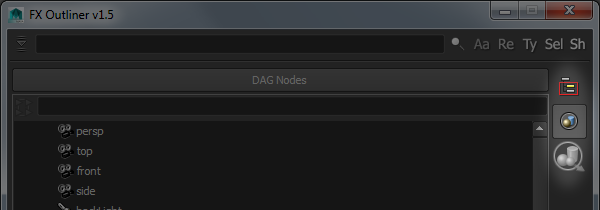
Use these buttons to modify the behavior of FX Outliner. You can add your own buttons to this panel and hook into their states to extend or change the tool’s functionality. Inspect the source code for further implementation details.
User Menu
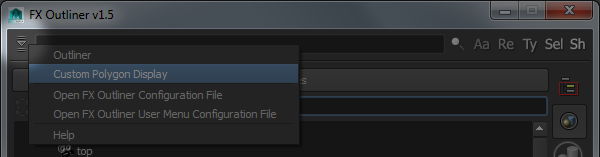
This dropdown menu provides quick access to custom commands and functionality. To populate this menu with your own tools, add them to the configuration file: ...\fxpt\fx_outliner\fx_outliner_user_menu.xml
Note: All commands in this file must be written in MEL.
Setup
Installation
FX Outliner is part of the FX Python Tools library. Download fxpt from GitHub and add it to your PYTHONPATH directory.
How to Run
Run the following code in the Script Editor or create a shelf button
from fxpt.fx_outliner import fx_outliner
fx_outliner.run()Compatibility
Tested on
Maya 2016
Maya 2017
Maya 2022 (with “-pythonver 2” flag)
Requirements
Maya versions using a Python 2.7 interpreter