Searcher
A robust search utility designed for speed and clarity. It provides a clean, Qt-based table view for results and can be easily extended with custom search types to fit specific workflows
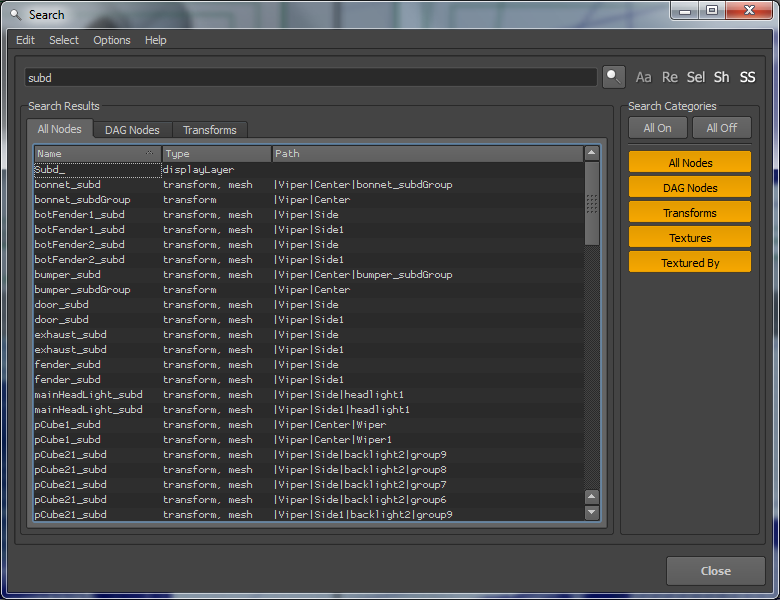
Features
Case Sensitivity
Toggle between literal and case-insensitive matching for precise filtering.
Wildcards
Use standard wildcard patterns for quick, flexible naming searches.
Regex Support
Full regular expression support for handling complex search queries and patterns.
Live Selection
Instantly select search results in the viewport or outliner as soon as they are found.
Hierarchy Filtering
Choose whether to include shape nodes or restrict your search scope strictly to the current selection.
Custom Search Types
Extend the tool’s architecture with your own search logic and specialized criteria.
Interface
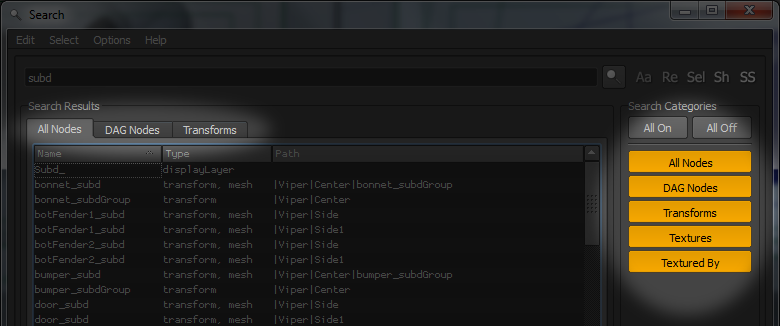
On the right side, you can toggle specific Search Type buttons. When active, if a search type returns any matches, a corresponding tab will automatically appear in the main results area.
Search Options
Aa: Toggle case-sensitive matching.
Re: Treat the search string as RegEx.
Ty: Search by node type instead of object name.
Sel: Select all search results immediately.
Sh: Include shape nodes in the search (ignored by default).
Extending
The core strength of Searcher is its extensibility, allowing you to implement custom search types with complete control over the results. You can display any amount of metadata in the results table and define bespoke selection logic for your matches. This enables contextual workflows. For example, a Textured By search type is configured to select the geometry linked to a file node (rather than the file node itself) when a result is clicked.
Inherit Class
First, visit Searchers.py and inherit a new class from SearcherBase. You then need to implement three methods.
getColumnNames
This is the simplest step. Return a list of the column names you want to display in the results table.
gatherSearchData
This method must return a list of tuples in the format:
[(fullPathName, searchField), (fullPathName, searchField), …]
fullPathName is the full Maya path to the node, and searchField is the string used for the search procedure. For example, in the SearcherTextures class (which finds a file node based on a texture name), fullPathName is the name of the file node, while searchField is the value of the .fileTextureName attribute (the texture path on disk).
Register Searcher
Finally, visit fx_search.py and add your new searcher to the self.searchers list within the initSearchersAndControls method.
Setup
Installation
Searcher is part of the FX Python Tools library. Download fxpt from GitHub and add it to your PYTHONPATH directory.
How To Run
To launch the tool via the Script Editor or a shelf button:
from fxpt.fx_search import fx_search
fx_search.run()Compatibility
Tested on
Maya 2016
Maya 2017
Maya 2022 (with “-pythonver 2” flag)
Requirements
Maya versions using a Python 2.7 interpreter