Texture Manager
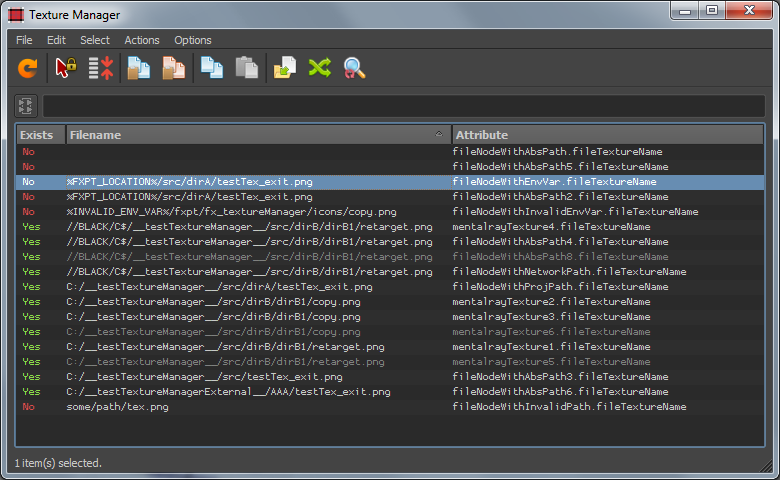
Texture Manager is a scene analysis tool that tracks and manages every texture in your Maya scene. It provides a central table showing which textures exist on disk, their file paths, and whether they are currently assigned to geometry. It allows you to bulk-copy, move, or retarget textures to new locations while optionally preserving folder structures.
Features
Scene Analysis
Instantly reveal all texture nodes, their file paths, and their existence on disk or network paths.
Usage Highlighting
Easily identify unassigned texture nodes through dimmed entries in the results table.
Live Filtering
Quickly isolate specific textures by typing any part of a path or filename into the filter field to update the table in real time.
Smart Retargeting
Redirect texture paths to new directories with options for recursive searching or relative root matching.
Bulk Copy & Move
Migrate your texture library to new locations with the option to maintain original folder hierarchies.
Sidecar File Support
Automatically include “partner” textures (such as _nm or _spec suffixes) during move or copy operations
Custom Texture Node Support
Easily add support for custom or third-party texture node types by editing a simple dictionary.
Batch Processing
Decoupled from the UI, the core logic can be used to build your own automated processing pipelines.
Interface
All actions and options in Texture Manager are accessible via the main menu, with the most frequent operations also available as toolbar buttons. The scene analysis results are displayed in a table with three columns:
- Exists – Indicates if the file path exists on disk or a network location. Texture Manager natively resolves Environment Variables to ensure path accuracy.
- Filename – Displays the string currently stored in the texture node’s file attribute.
- Attribute – Identifies the specific texture node and the attribute containing the path.
Some records use the standard text color while others appear dimmed. A record is dimmed when the texture node is not connected to any geometry. To be precise: the texture node is not part of a shading network attached to any shadingGroup, or the shadingGroup containing this node in its network is empty.
Note: A dimmed record does not always mean the node is useless; it may still be connected to other scene elements like cameras or renderGlobals.
To quickly isolate results, use the Filter field above the main table; typing any string will instantly limit the view to matching records.
Main menu reference
File
- Refresh – Reanalyzes the scene and update the results table.
- Exit – Closes Texture Manager.
Edit
- Copy – Copies the filename of a single selected record to the clipboard.
- Paste – Replaces the filenames of all selected records with the current value in the clipboard.
- Copy Full Path – Copies the full path (directory + filename + extension) of all selected records to the clipboard.
- Copy Filename – Copies only the filenames + extensions of all selected records to the clipboard.
Select
- Select All – Selects every record in the results table.
- Select None – Clears the current selection in the results table.
- Select Invert – Inverts the current selection in the results table.
Options
- Collapse Repetitions – When enabled, the table displays only one entry for all texture nodes sharing the same filename.
- Analyze Selection – Select objects in the scene and activate this option to populate the results table with texture nodes attached to the selected geometry. The tool will operate only on these nodes until the option is deactivated.
When selecting records in the results table:
- Select Nothing – Do nothing.
- Select Assigned – Select geometry with the corresponding texture node(s) assigned.
- Select Texture Node – Select the corresponding texture node(s).
Actions
Delete Unused Shading
Nodes
Same as Hypershade -> Edit -> Delete Unused Nodes.
Copy/Move
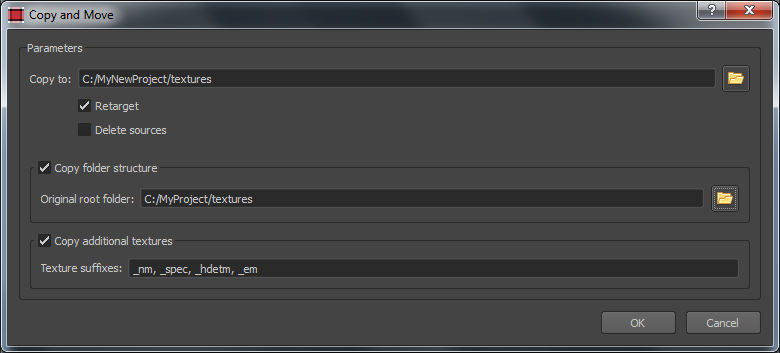
This action allows you to copy or move texture files, and optionally retarget texture nodes to the new location.
- Copy to – The destination directory.
- Retarget – Retarget the texture nodes to the new location.
- Delete sources – Delete the original files. In other words, perform a Move instead of a Copy.
- Copy folder structure – Enable this option if you want to copy files while retaining their original folder hierarchy instead of storing them all in the destination folder. To help Texture Manager construct this structure, you must provide an “Original root folder.”
For example, suppose you have texture nodes with these filenames:
C:/MyProject/textures/sky.tgaC:/MyProject/textures/buildings/wall.tgaC:/MyProject/textures/buildings/roof.tgaC:/MyProject/textures/grass/grass1.tga
And you want to move them to a new location: D:/MyNewProject/textures.
Without the “Copy folder structure” option, all textures will be copied directly to the destination folder:
D:/MyNewProject/textures/sky.tgaD:/MyNewProject/textures/wall.tgaD:/MyNewProject/textures/roof.tgaD:/MyNewProject/textures/grass1.tga
If you enable “Copy folder structure” and set the “Original root folder” to C:/MyProject/textures, the files will be copied to the following destinations:
D:/MyNewProject/textures/sky.tgaD:/MyNewProject/textures/buildings/wall.tgaD:/MyNewProject/textures/buildings/roof.tgaD:/MyNewProject/textures/grass/grass1.tga
- Copy additional textures – In some production pipelines, “partner” textures (such as normal or specular maps) reside in the same folder as the “main” texture but may not have corresponding nodes in the Maya scene. If you want to copy these files as well, activate this option and provide the name suffixes (separated by commas) used to identify them.
For example, suppose you have texture nodes with these filenames:
C:/MyProject/textures/buildings/wall.tgaC:/MyProject/textures/buildings/roof.tga
If you enable Copy additional textures and provide Texture suffixes such as _nm, _spec, the following textures (if they exist) will be copied along with the main ones:
C:/MyProject/textures/buildings/wall_nm.tgaC:/MyProject/textures/buildings/wall_spec.tgaC:/MyProject/textures/buildings/roof_nm.tgaC:/MyProject/textures/buildings/roof_spec.tga
Retarget
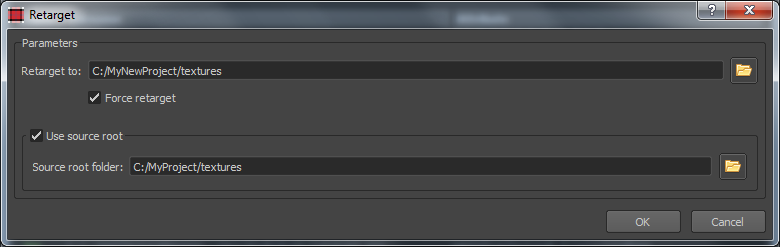
This action will retarget existing filenames in texture nodes to a new location.
“Simple” algorithm:
The tool searches for textures in the target folder and its subfolders. If it finds a match, it retargets the node to that location based on the first occurrence found.
“Use source root” algorithm:
Use source root – Try to find a texture relative to its original location.
It is better to explain this by example. Suppose you have a texture node with this filename:C:/MyProject/textures/buildings/wall.tga
And you are retargeting to:D:/MyNewProject/textures
And your “Use source root” option is:C:/MyProject/textures
First of all, the retarget processor will try to find the texture at:D:/MyNewProject/textures/buildings/wall.tga
If it does not exist, it will proceed with “Simple” retargeting.
Search and Replace
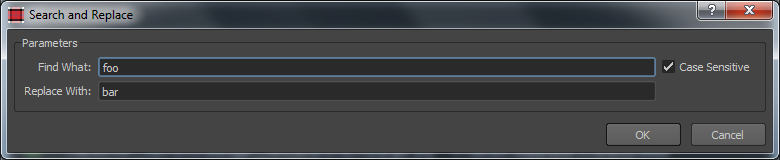
This action will search for a string in filenames and replace it with a provided one.
- Find what – The string to search for.
- Case sensitive – If enabled, the search will be case sensitive.
- Replace with – The string to replace it with.
Extending with other texture node types
It is very simple. Just visit fxpt\fx_textureManager\Harvesters.py and add a record to the TEX_ATTRIBUTES dictionary:
- Key: Texture node type.
- Value:
Listof attributes containing texture filenames.
Using in batch
mode
Texture Manager was designed to allow its use in batch mode and is completely decoupled from the UI. You can use its processors fxpt\fx_textureManager\Processors.py and harvesters fxpt\fx_textureManager\Harvesters.py to construct your own processing pipelines without UI interaction. Moreover, ProcessorCopyMove can work even outside the Maya environment.
Setup
Installation
FX Outliner is part of the FX Python Tools library. Download fxpt from GitHub and add it to your PYTHONPATH directory.
How to Run
Run the following code in the Script Editor or create a shelf button
from fxpt.fx_texture_manager import fx_texture_manager
fx_texture_manager.run()
from fxpt3.fx_texture_manager import fx_texture_manager
fx_texture_manager.run()Compatibility
Tested on
Maya 2016
Maya 2017
Maya 2022 (with “-pythonver 2” flag)
Maya 2024
Maya 2025